Git
 cd <to dir you want to make git>

 git config --global user.name "samuel-edmund-morgan"
 git config --global user.email "samuel.edmund.morgan@gmail.com"
 git init -b main (or git clone <repo> if someone's else repo)
#also you can view all git settings in ~/.gitconfig file

 #<add or create files in this dir>

 git add . #or name of the file
 # to undo changes in file use git restore

 git commit -m "Init commit"
 #<create github repo>
 #<share ssh keys in Settings>
 git remote add origin git@github.com:samuel-edmund-morgan/DocumentCleaner.git
 git remote -v
 git push -f origin main


 #<Now make changes in files>

 git add .
 git commit -m "Something have been done"
 git push  origin main


git log
#--shows comit history--

git status
#--It will show status of files or whether directory upon control of git--


git pull
#--updates changes from repos--

git checkout -b [name_of_your_new_branch]
#--creates new branch for you and makes it current--
#or
git branch newname
#creates new branch

git branch -m main
#renames master to main (if master is current)

git checkout <commit id like aa43ce3442fhd>/<or branch name>
#or
git checkout master #to move back to master
#--navigate through commits


git push origin [name_of_your_new_branch]
#--pushes (after git commit) changes to repo in different branches--


git branch
#shows all branches

#You should not work in main (master) but create separate branches for separate features, work in branches, and after everything is done in a branch and verified to be working - switch to main and do git merge
git checkout main (#or master)
git merge [name_of_your_branch]

If something accidentally ended up in main (master) that should not have been there, you can revert the changes in two ways:
1) git revert [hash_of_commit_to_undo] #(to see hashes, run git status beforehand)
2) git reset [hash_of_commit_to_navigate] #(hash of the commit you want to go back TO)


#You can go back a couple of commits (^^) and delete the changes made in files (--hard):
git reset HEAD^^ --hard


#When there are many different branches, the commit structure often looks very branched, so git rebase is used to make the structure linear:
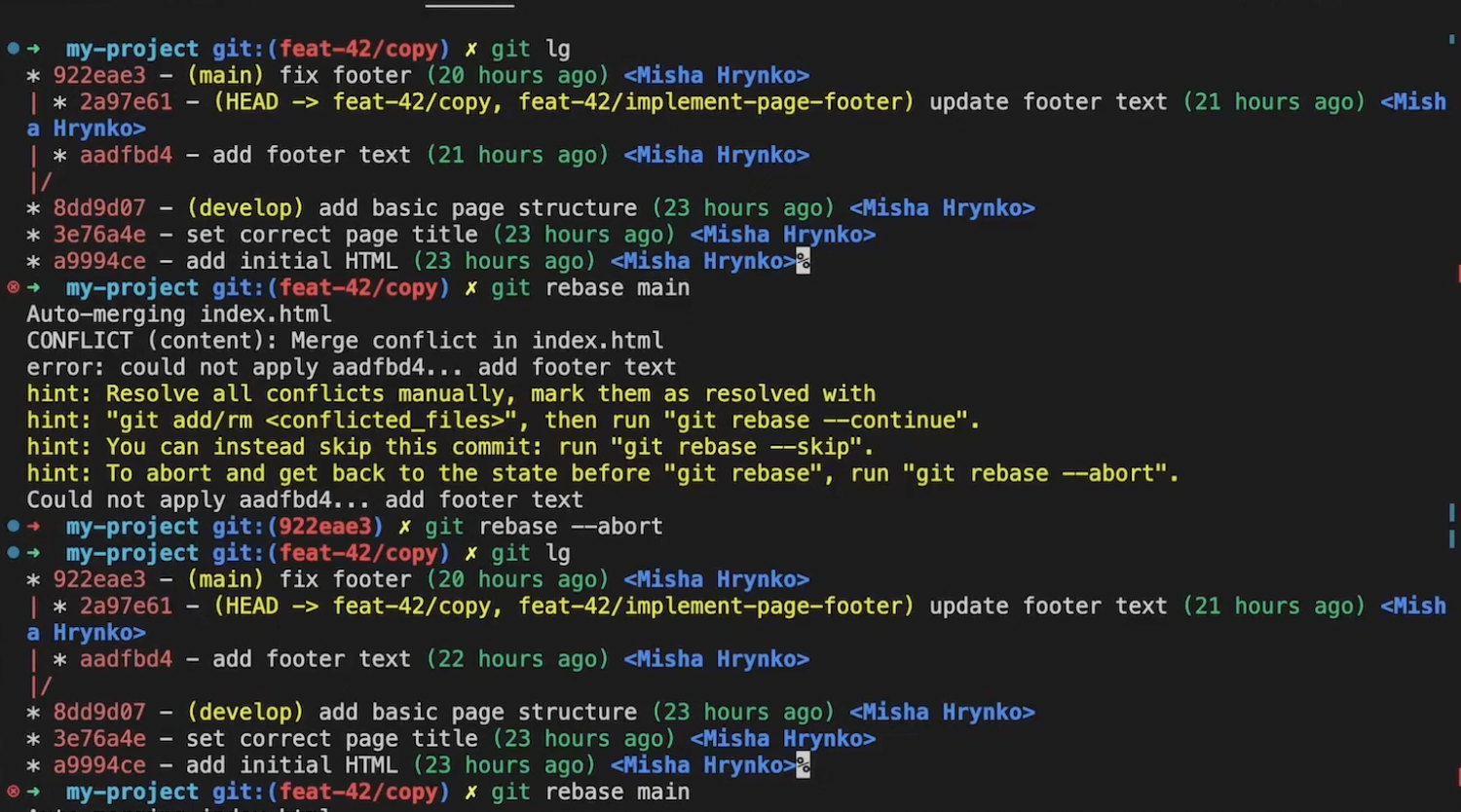
RULE: One feature - one commit to the main branch.
If you need to undo changes made to a file that has not yet been added to the staging area, you can run the command:
If a file was accidentally added to the staging area, run the command:
| Command | Description |
|---|---|
git config --global ... |
Set global Git parameters |
git init |
Initialize a new Git repository in the current directory |
git status |
Show repository information |
git add ./path/to/files |
Stage file changes for committing |
git restore file_name |
Undo changes in a modified file file_name |
git restore --staged file_name |
Remove file file_name from the staging area |
git commit |
Open a text editor to enter a commit message and save changes from the staging area |
git commit -m 'do something' |
Save changes with the specified message |
git commit -am 'do something' |
Stage all modified files and save with the specified message |
git log |
Show commit history |
git lg |
Alias we created for log |
git branch |
Show all branches |
git branch branch_name |
Create a new branch branch_name |
git branch -D branch_name |
Delete branch branch_name |
git checkout hash-or-branch |
Switch to another branch or commit hash |
| Command | Description |
|---|---|
git branch |
Show all branches |
git branch new_branch |
Create a new branch named new_branch |
git branch -m new_name |
Rename the current branch to new_name |
git branch -d branch_name |
Delete an inactive branch |
git checkout branch_name |
Switch from the current branch to branch_name |
git switch branch_name |
Switch from the current branch to branch_name |
git checkout -b new_branch |
Create branch new_branch and switch to it immediately |
git switch -c new_branch |
Create branch new_branch and switch to it immediately |
git merge branch_name |
Merge branch_name into the current branch |
git revert hash_of_commit |
Create a new commit with changes opposite to the selected commit |
git reset hash_of_commit |
Move the branch to the specified commit |
git reset HEAD^^ --hard |
Move the active branch back by 2 commits and delete all changes in files |
git rebase branch_name |
Rebase changes from the current branch onto branch_name. All commits of the current branch will be rebuilt on top of branch_name |
git rebase -i branch_name |
Rebase changes from the current branch onto branch_name. Only selected commits of the current branch will be rebuilt on top of branch_name |
git restore file_name |
Remove unstaged changes in file_name |
git restore --staged file_name |
Remove staged changes in file_name |
git restore -SW |
Remove all changes in files (both staged and unstaged) |
git commit --amend |
Replace the current commit with another one |
Git signing with Yubikey:
git config --global user.email "samuel.edmund.morgan@icloud.com"
git config --global user.name "Samuel Morgan"
git config --global user.signingkey EAFEC4BBF49CC2FA
git config --global commit.gpgsign true

#On Mac
#git config --global gpg.program gpg

#On Windows
git config --global gpg.program "C:\\Program Files (x86)\\GnuPG\\bin\\gpg.exe"
GPG Suite and Yubikey Manager (at least cli version) must be installed
In VSCode in command palette (Command + Shift + P) enter "Open User Settings" and enter: